
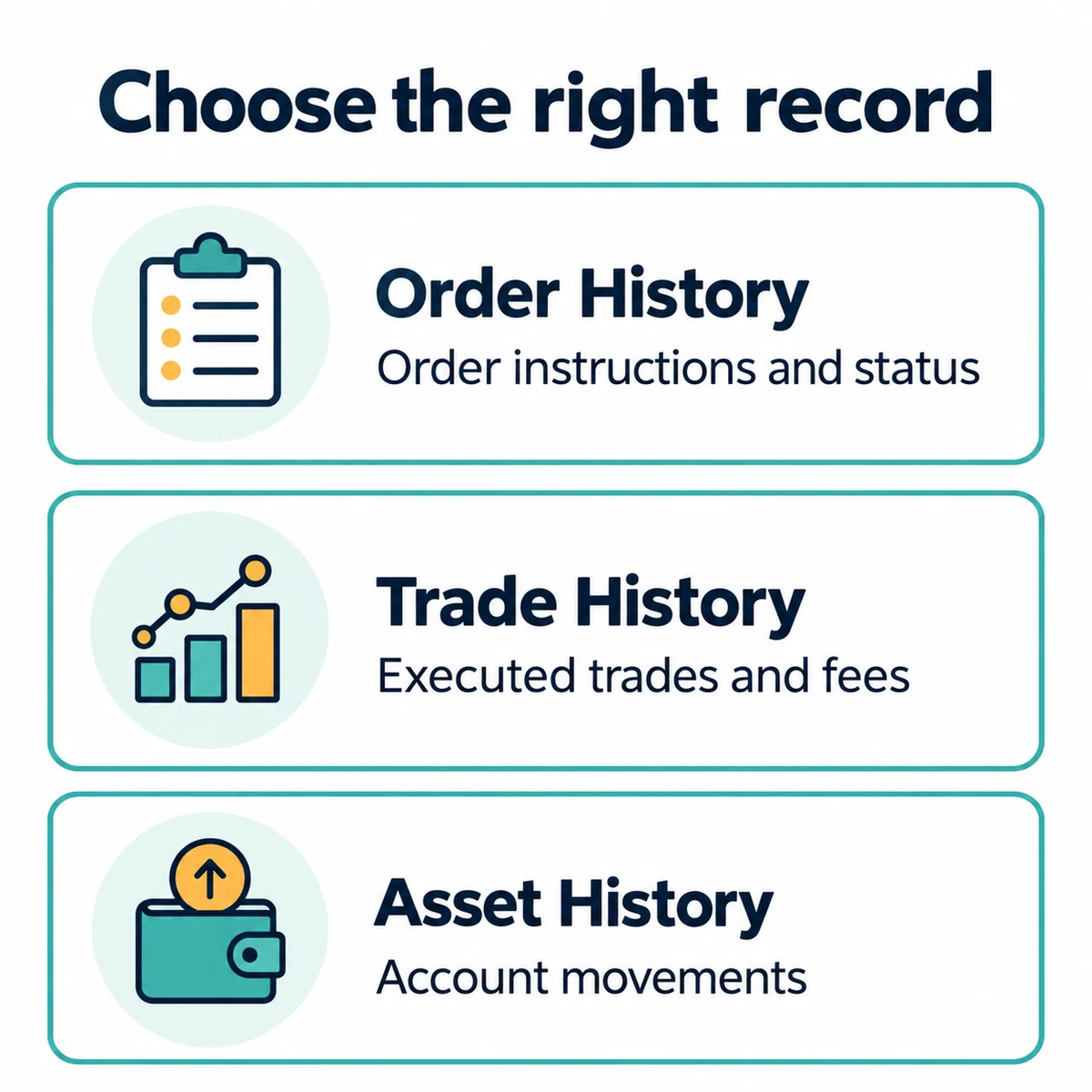
Binance transaction history export starts with choosing the right record: Order History describes orders, Trade History describes executions and their fees, and Asset History is the separate route for account transaction records. For a Spot CSV, use the trading-history export; for broader account movements, inspect the relevant asset-history export and its filters. A downloaded file is not automatically a complete account ledger or a tax return. Available records, labels and export limits can differ by interface and account.
Last reviewed: October 12, 2026. This guide uses the English Binance documents linked beside the relevant procedures. The checklists and hypothetical reconciliation below are Bimence’s explanations, not a claim that we accessed or tested a customer account.
Choose the record before exporting
A CSV is a text-based table that spreadsheet and accounting applications can import. The file format does not tell you whether you have selected the right product, account, dates or transaction types.
| Record | Question it helps answer | What not to assume |
|---|---|---|
| Order History | What order was placed, and what status did it reach? | Every order became an executed trade. |
| Trade History | What executed, and which fee was recorded? | It contains every deposit, withdrawal or other product. |
| Asset History / transaction records | Which account movements are included by the selected export? | Its scope is identical to a Spot execution report. |
Binance distinguishes order records from executed trading activity. A canceled order can still have an executed portion; an entirely unfilled order belongs in order records rather than as a trade. Official reference: Spot activity and record types.
Where to export Binance history in your account
Spot executions on the website
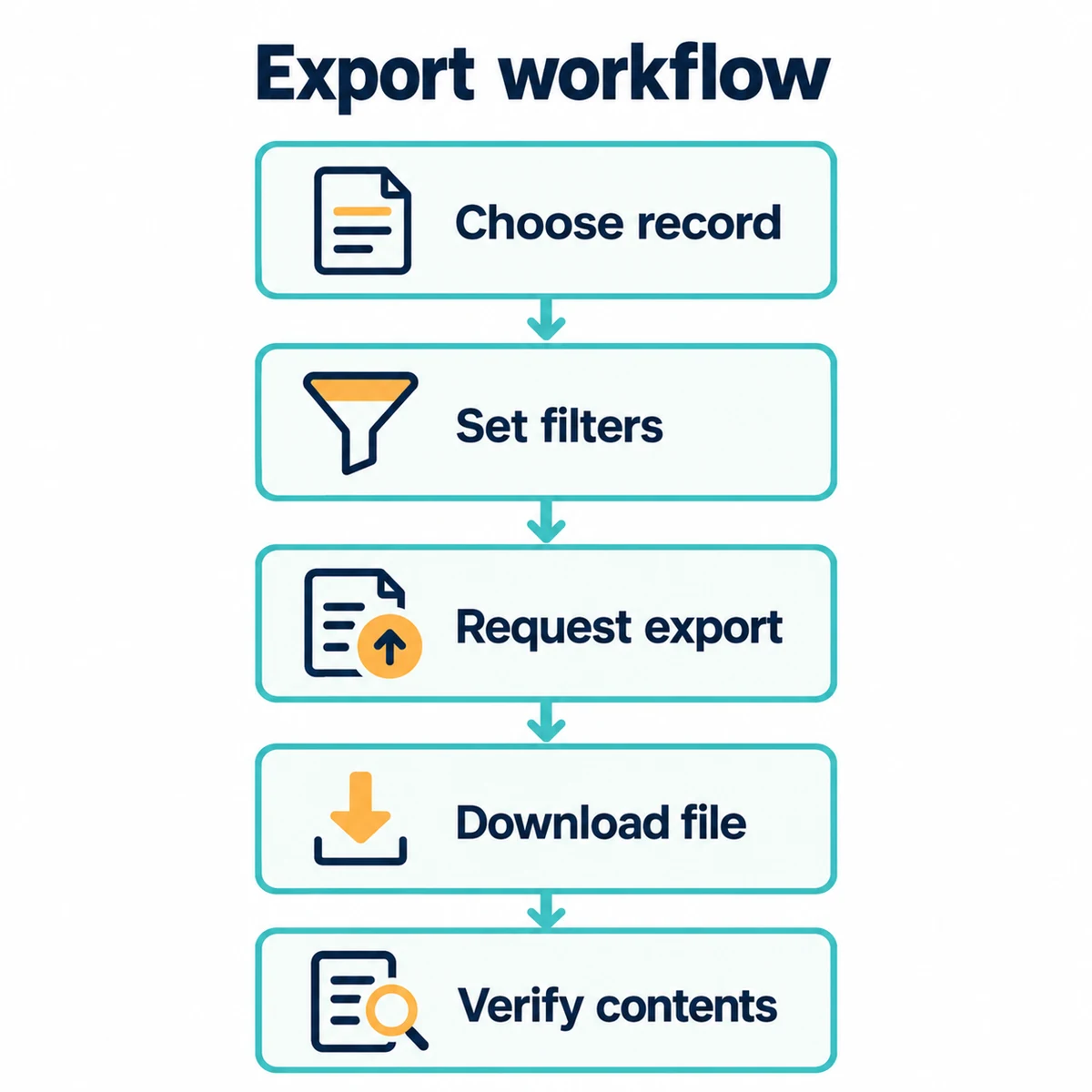
The English Spot download guide places the export under Profile → Orders → Spot Order → Trade History → Export Trade History. Select the period, request generation when needed, then download the ready statement as CSV. For this specific Spot route, the document describes a one-year statement window and a monthly generation limit; verify the current export panel before using the allowance. Official reference: Spot statement download.
Broader account transaction records
The general transaction-history guide uses Assets → Asset History → Export Transaction Records. Choose the available account, coin and period filters; use a custom range where offered. Its quota is separate from the Spot statement route: the live interface is the place to check the remaining allowance. Official reference: account transaction-history export.
On the app
For Spot activity, the official activity guide starts from Trade → Spot → History, with a download control on the relevant history tab. The general export guide also describes Assets → History → My Trades. These labels describe different entry points, not a promise that every app version has the same menus. Choose the record type before following the available export control.
Before requesting a report: write down the product, account or sub-account, record type, dates, time-zone setting and asset or pair filters. This small export log helps explain later why two files contain different rows. No API key or third-party account connection is required by the manual routes described here.
Check dates, time zones and download availability
Binance’s Spot guide distinguishes recent exports from older statement generation and identifies UTC+0 for the older-history statement route. The general guide says generation may take time and directs users to the report status. Both documents describe download links that expire after seven days. Read the current panel for the route you are using; do not transfer one route’s limits to another.
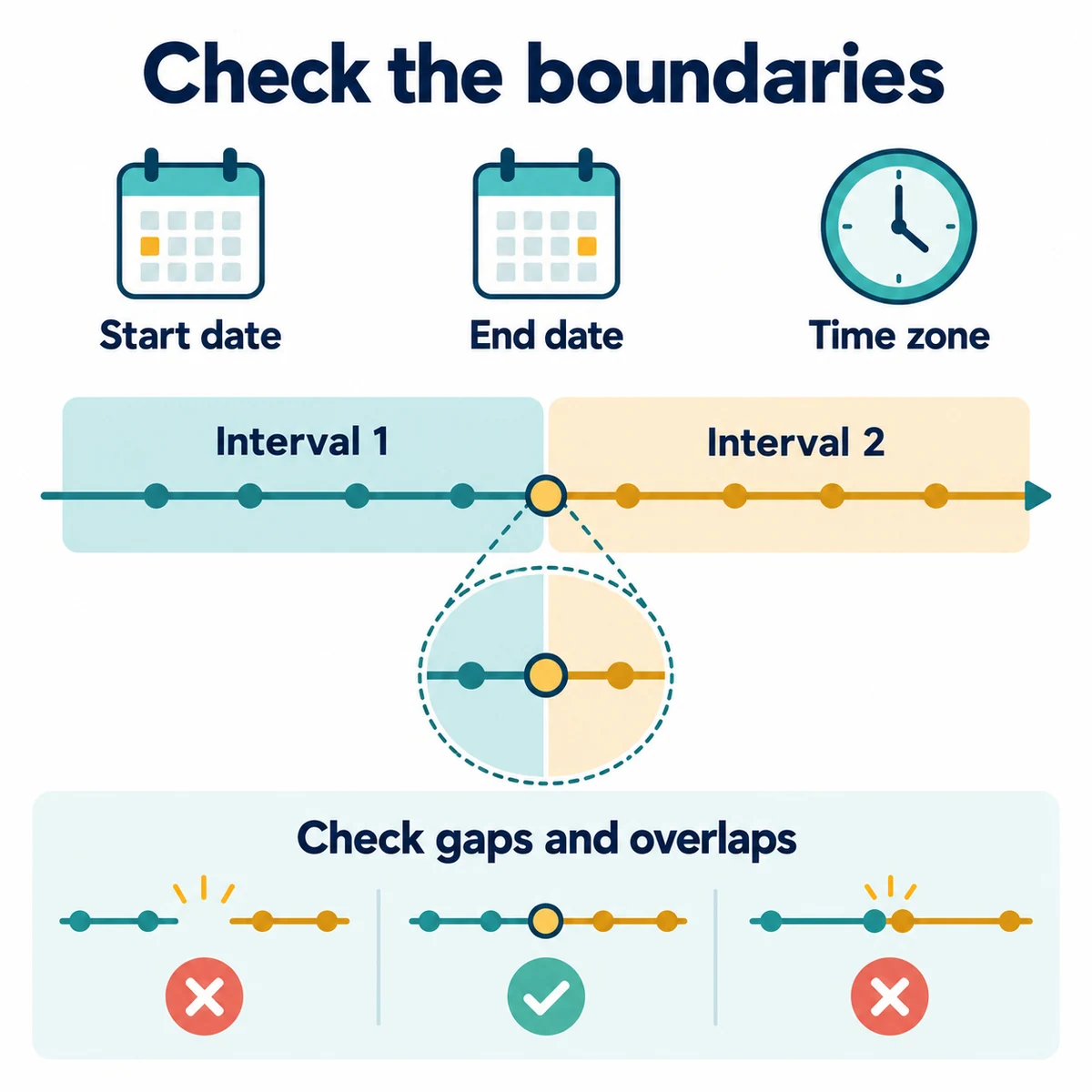
For your own record-keeping, treat a selected date range as something to verify in the file, not merely a label on a button. Preserve its original timestamp field and note whether the file or export panel identifies a time zone. If it does not, do not silently label the values as local time.
A hypothetical boundary illustrates the issue: January 1 at 00:30 in Korea is December 31 at 15:30 UTC. The same event can therefore fall on different calendar dates. This is a time-conversion example, not a statement about a customer’s report or the tax period that applies to them.
When requesting several periods, inspect the first and last rows of each file. Check for gaps and overlaps at the joins. Do not assume an end date is inclusive or exclusive without reading the panel and comparing the actual rows. Retain an export log so a missing period can be investigated without repeatedly generating the same reports.
Why an order and a CSV can show different totals
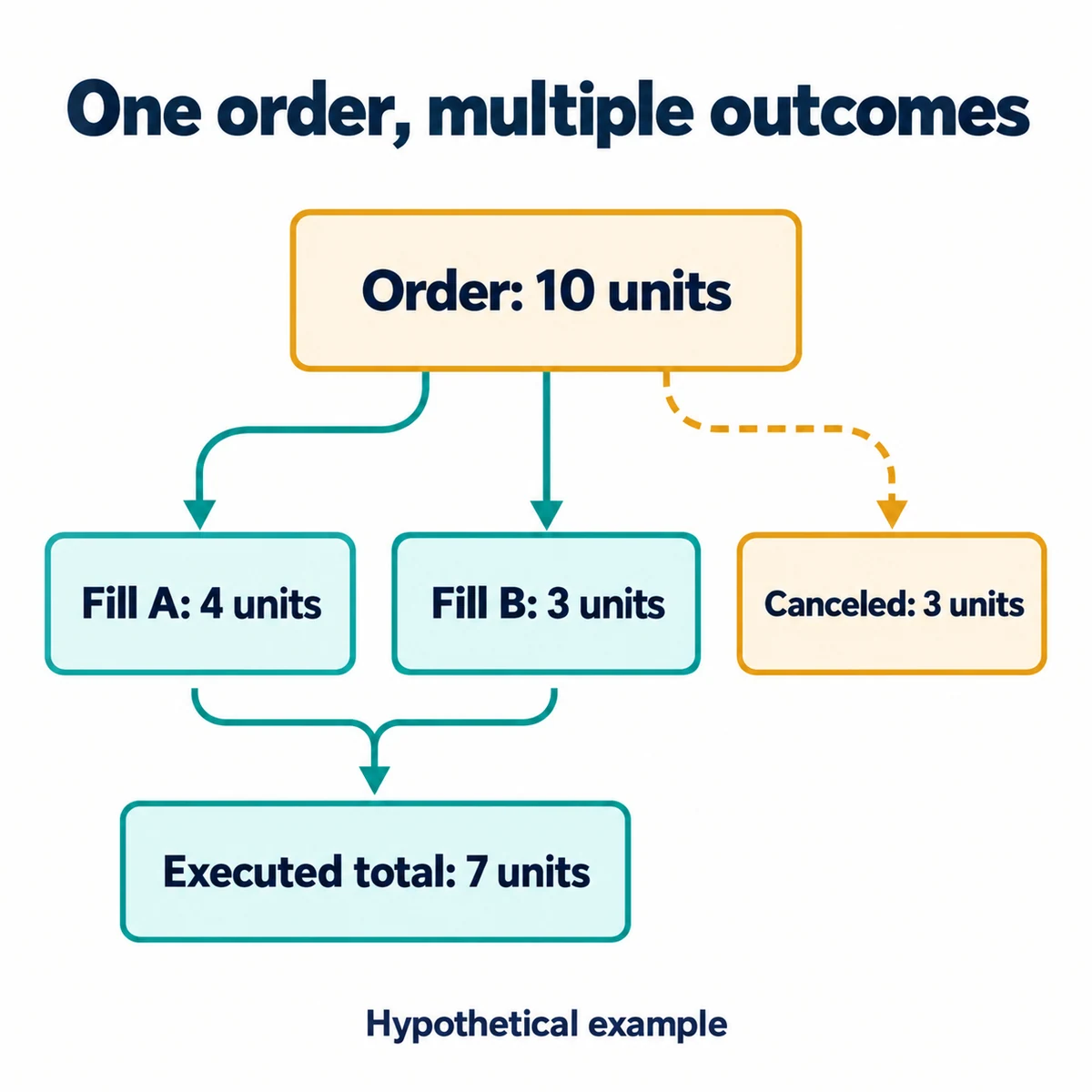
Start by comparing like with like. Requested order quantity, executed quantity, asset movement and fee are different quantities. Counting rows alone is not a reliable check because an order can have more than one execution.
Hypothetical example: an order requests 10 units. One fill executes 4 units, a second executes 3 units, and the remaining 3 units are canceled. The executed quantity is 4 + 3 = 7 units, not 10. This example describes accounting categories only; it is not a real trade, fee quotation or recommendation.
For the fee side, keep each amount paired with its fee asset. Do not add a charge in BNB directly to a charge in USDT and call the result a single-currency total. If you later convert values, retain the original amounts and separately document the rate, timestamp and method. Our actual trading-fee guide covers fee reconciliation; the Binance fees guide explains the separate cost categories.
A practical CSV verification checklist
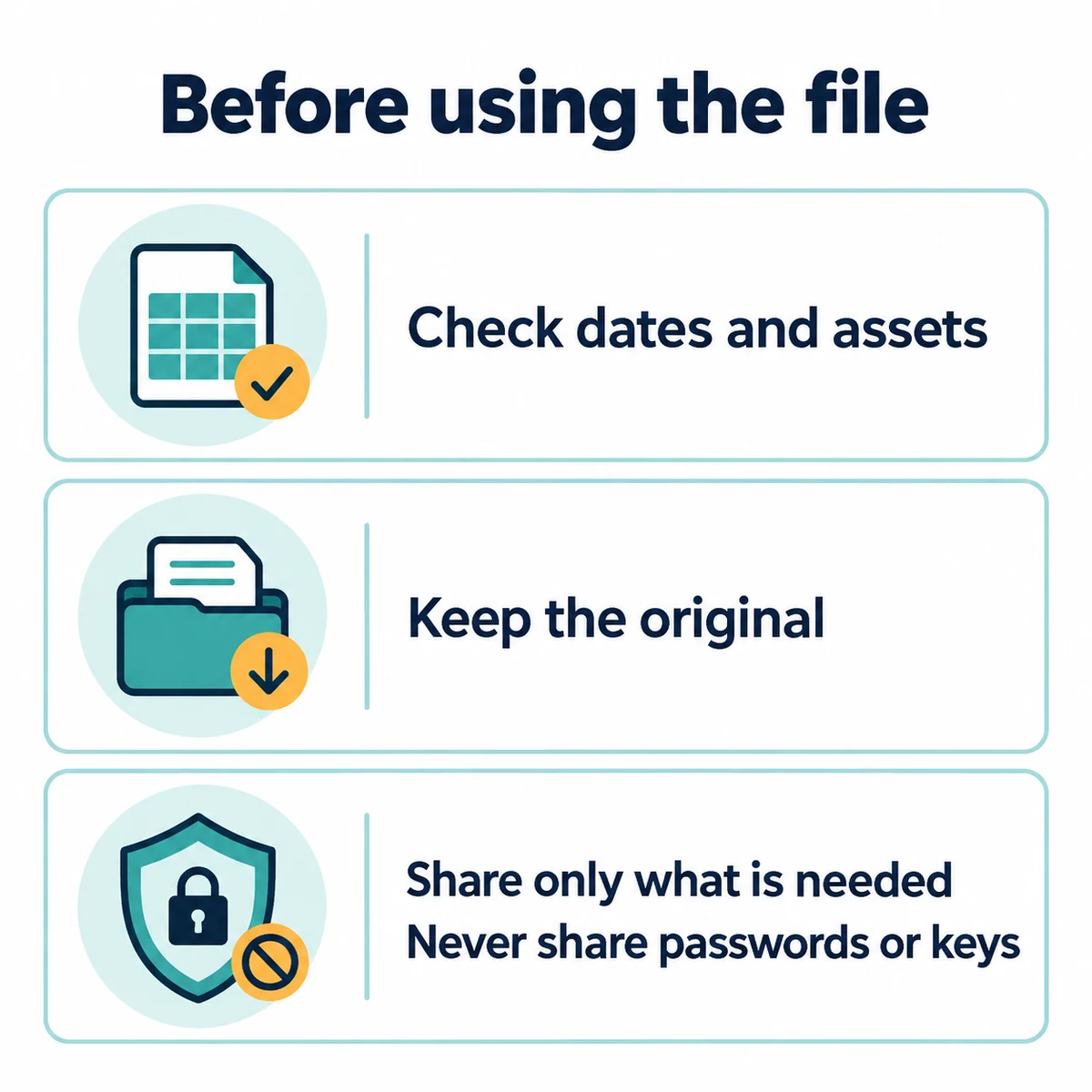
- Keep the original download unchanged. Work on a copy so imports, sorting and spreadsheet formatting do not overwrite the evidence.
- Confirm the scope. Compare product, account, record type, filters and period with your export log. A Spot file should not be treated as proof of complete Futures, Earn, P2P or transfer records.
- Check the import. Make sure the delimiter separates the columns properly. Import identifiers as text where needed, and inspect whether a spreadsheet changed timestamps, decimal separators or long identifiers.
- Sample the contents. Compare a few identifiable entries with the corresponding account screen, including an early row, a late row and any known event near a period boundary.
- Investigate duplicates before removing them. Compare the available identifiers and record types. Similar amounts or timestamps alone do not prove two rows describe the same event.
- Reconcile movements separately. An internal transfer is not automatically a purchase or sale. For an on-chain deposit or withdrawal, compare the relevant history and transaction details; our network and transfer guide explains those checks.
This checklist is Bimence’s record-management method, not a Binance-certified accounting workflow. File layouts and supported exports may change. If the file is inconsistent with the account screen, retain the original and ask authenticated Binance Support about the affected record and scope.
When a file is missing, empty or not ready
| Symptom | First check | Safe next step |
|---|---|---|
| No expected row | Product, account, filters, record type and time boundary | Locate the event on the matching account screen before requesting another export. |
| Report still generating | The existing request’s current status | Avoid duplicate requests merely because an email or notification has not arrived. |
| Download unavailable | Readiness, link availability and the displayed allowance | Use the official report panel; ask support if the file and status disagree. |
| Unreadable columns | Import delimiter and automatic formatting | Re-import a copy without changing the original download. |
For a support question, describe the report type, requested dates, app or website route, visible status and a redacted example of the discrepancy. Do not publish a complete account statement in a forum. A helper should not need your password, one-time security code, seed phrase or API secret to explain a CSV.
Does the export complete a tax report?
No. An exported record is evidence for further review, not a determination of tax treatment or a completed return. Which records and valuation rules are required depends on the applicable jurisdiction and circumstances. This article does not calculate taxable income, choose an accounting method or make jurisdiction-specific filing claims. A qualified adviser can identify what else is needed.
For basic account protection while downloading or sharing records, see our Binance account-security guide. Bimence does not collect account statements, identity documents or account credentials.
Frequently asked questions
Why is a canceled order not the same as a missing trade?
Check whether any quantity executed before cancellation. Use the order record for the instruction and final status, then reconcile any executed portion with the trading records. The hypothetical ten-unit example above shows why requested and executed amounts need not match.
Can I combine several CSV downloads into one spreadsheet?
Yes, as a working copy, but preserve the originals and each file’s scope. Align the column meanings first, check period boundaries and do not remove rows solely because their amounts look similar. Keep different products and fee assets identifiable.
Does this manual process require an API key?
The manual export routes described here use the account interface. Do not create or disclose an API key just to follow this guide. Any later third-party import is a separate permission and security decision, not a prerequisite stated here.
Official sources and review scope
English pages checked on October 12, 2026:
- How to Download Spot Trading Transaction History Statement? — Spot CSV route and the stated export conditions.
- How to View My Spot Trading Activity? — order versus execution records and app navigation.
- How to Generate Transaction History? — broader transaction-record export, filters and report status.
These English documents do not prove that every product or export route is available in every country or account. Check the current signed-in interface and the official documentation for your service. The calculations, export log, file-checking method and diagrams are Bimence’s educational additions. Our About & Editorial Policy explains the editorial approach.
Affiliate disclosure: Bimence may earn a commission from eligible activity through affiliate links elsewhere on this site. This export guide does not require a referral code or a new registration. Read the Affiliate Disclosure.
Risk disclosure: Cryptoassets can lose value, and services may be restricted by region. This is general education, not investment, financial, legal or tax advice. Read the Risk Disclosure.